Thursday, 12 November 2015

Showing FlipClock Using Jquery in Asp.Net

No comments    
categories: , ,
                 Showing FlipClock

Displaying  Jquery Flip Clock to Various Format Using  Jquery Flipclock Plugins in Asp.Net.

                                DEMO


                            Download

                         HTML Coding

<html>
       <head>
        <title></title>
              <link rel="stylesheet" href="JQuery/flipclock.css">

              <script src="http://ajax.googleapis.com/ajax/libs/jquery/1.10.2/jquery.min.js"></script>

         <%--Twelve Hour Clock--%>

              <script src="JQuery/flipclock.js"></script>    
       
        <script type="text/javascript">
            var clock;

            $(document).ready(function () {
                clock = $('.clock').FlipClock({
                    clockFace: 'TwelveHourClock'
                   
                });
            });
              </script>


<%--Twenty Four Hour clock For Particular Set Time--%>
       
        <script type="text/javascript">
            var clock;

            $(document).ready(function () {
                var date = new Date('2015-01-01 01:55:12 pm');

                clock = $('.clock1').FlipClock(date, {
                    clockFace: 'TwentyFourHourClock'
                });
            });
              </script>    


<%--Particular Minute Counter--%>


        <script type="text/javascript">
            var clock;

            $(document).ready(function () {

                clock = $('.clock2').FlipClock(10, {
                    clockFace: 'MinuteCounter',
                    countdown: true,
                    callbacks: {
                        
                    }
                });

            });

       </script>


<%--Current Year Available total Days --%> 

        <script type="text/javascript">
            var clock;

            $(document).ready(function () {

                // Grab the current date
                var currentDate = new Date();

                // Set some date in the future. In this case, it's always Jan 1
                var futureDate = new Date(currentDate.getFullYear() + 1, 0, 1);

                // Calculate the difference in seconds between the future and current date
                var diff = futureDate.getTime() / 1000 - currentDate.getTime() / 1000;

                // Instantiate a coutdown FlipClock
                clock = $('.clock3').FlipClock(diff, {
                    clockFace: 'DailyCounter',
                    countdown: true
                });
            });
              </script>


       </head>
       <body>
              <div class="clock">
              </div>       
              <div  class="clock1" ></div>
        <div class="clock2"> </div>
                     <div class="clock3" ></div>

       </body>

</html>
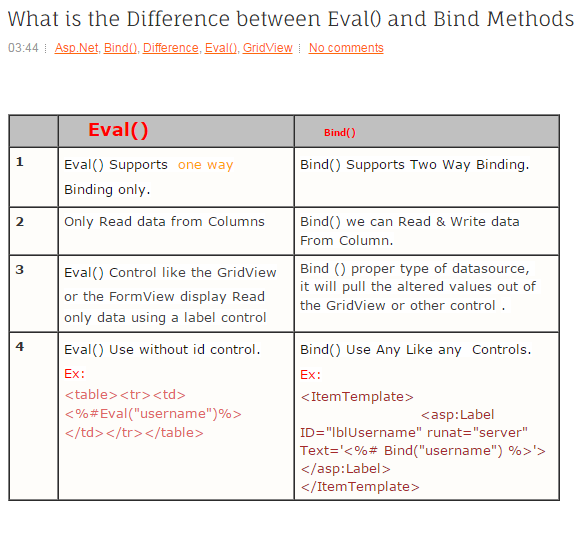


Friday, 6 November 2015

What is the Difference between Eval() and Bind Methods


Thursday, 5 November 2015

How to Merge Two Datatable or Dataset Values Bind to Gridview Using Asp.Net C#

Merge Two Datatable or Dataset Values to Gridview


Merge Two Datatable or Dataset Values Bind to GridView or Some Controls Using in Asp.Net C#.

                                   DEMO


                                      Download
  
                                   HTML Coding

<html xmlns="http://www.w3.org/1999/xhtml">
<head runat="server">
    <title>How to Merge Two Datatable or Dataset Values  Bind to  Gridview  Using Asp.Net C#</title>
</head>
<body>
    <form id="form1" runat="server">
    <div align="center">
    <table><tr><td>
        &nbsp;</td><td>
            &nbsp;</td></tr>
        </table>
         <table><tr><td>
             <asp:GridView ID="GridView1" runat="server">
             </asp:GridView>
             </td></tr></table>
    </div>
    </form>
</body>
</html>


                                 C# Coding

using System;
using System.Collections.Generic;
using System.Linq;
using System.Web;
using System.Web.UI;
using System.Web.UI.WebControls;
using System.Data.SqlClient;
using System.Data;

public partial class _Default : System.Web.UI.Page
{
    protected void Page_Load(object sender, EventArgs e)
    {  
        GridView1.Attributes.Add("bordercolor","red");
        MergeGrid();
    }
    protected void MergeGrid()
    {
        SqlConnection con = new SqlConnection(System.Configuration.ConfigurationManager.ConnectionStrings["dbcon"].ToString());
        con.Open();
        SqlDataAdapter adp = new SqlDataAdapter("select * from Reg", con);
        DataSet ds1 = new DataSet();
        adp.Fill(ds1);     
        adp = new SqlDataAdapter("select * from sale", con);
        DataSet ds2 = new DataSet();
        adp.Fill(ds2);      
        ds1.Merge(ds2,true);    
        if (ds1.Tables[0].Rows.Count > 0 && ds2.Tables[0].Rows.Count>0)
        {
            GridView1.DataSource = ds1;
            GridView1.DataBind();
        }
        con.Close();
    }
   

}


Create Two Database tables


Monday, 2 November 2015

Highlight Gridview Row on Mouse Hover Using in Asp.Net C#

Highlight Gridview Row on Mouse Hover 

Display Gridview Row on Mouse Hover Highlight Row  Different  Color Using in Asp.Net  C#

                                 DEMO 


                      Download
                  
                    HTML Coding

<html xmlns="http://www.w3.org/1999/xhtml">
<head runat="server">
    <title>Highlight Gridview Row on Mouse Hover Using in Asp.Net C# </title>
</head>
<body>
    <form id="form1" runat="server">
    <div align="center">
        <asp:GridView ID="GridView1" runat="server" AutoGenerateColumns="False" OnRowCreated="GridView1_RowCreated">
            <Columns>
                <asp:BoundField DataField="Id" HeaderText="Id"/>
                <asp:BoundField DataField="Course" HeaderText="Course Name"/>
            </Columns>
        </asp:GridView>
    </div>
    </form>
</body>
</html> 

                             C# Coding

using System;
using System.Collections.Generic;
using System.Linq;
using System.Web;
using System.Web.UI;
using System.Web.UI.WebControls;
using System.Data.SqlClient;
using System.Data;

public partial class _Default : System.Web.UI.Page
{
    protected void Page_Load(object sender, EventArgs e)
    {
     
        SqlConnection con=new SqlConnection(System.Configuration.ConfigurationManager.ConnectionStrings["dbcon"].ToString());
        con.Open();
        SqlDataAdapter adp = new SqlDataAdapter("select * from Reg",con);
        DataTable dt = new DataTable();
        adp.Fill(dt);
        GridView1.DataSource = dt;
        GridView1.DataBind();

    }
    protected void GridView1_RowCreated(object sender, GridViewRowEventArgs e)
    {       
        if (e.Row.RowType == DataControlRowType.DataRow)
        {
            var Mouseover = "this.style.backgroundColor='lightpink'";

            var Mouseout = "this.style.backgroundColor='white'";

            e.Row.Attributes.Add("onmouseover", Mouseover);
            e.Row.Attributes.Add("onmouseout", Mouseout);
        }
    }

}